Printing Product Labels in Afosto
Why This Is Useful
With product labels, you can maintain organization in your warehouse, help employees quickly find the right products, and prevent errors when picking and packing.
What You Need
- A label printer connected to your local network
- The Afosto Spooler app installed.
- An active Afosto account with access to WMS
Step 1: Install the Spooler App
- Go to your Afosto management interface.
- Navigate to Apps > Spooler.
- Follow the installation-instructies to connect Spooler to your printer.
- Spooler allows you to automatically print labels via a local printer based on a print job from Afosto.
Step 2: Create a Print Job
- In the Afosto environment, go to your product overview or warehouse stock.
- Select the products for which you want to print a label.
- Click the three dots and choose "Print Product Label".

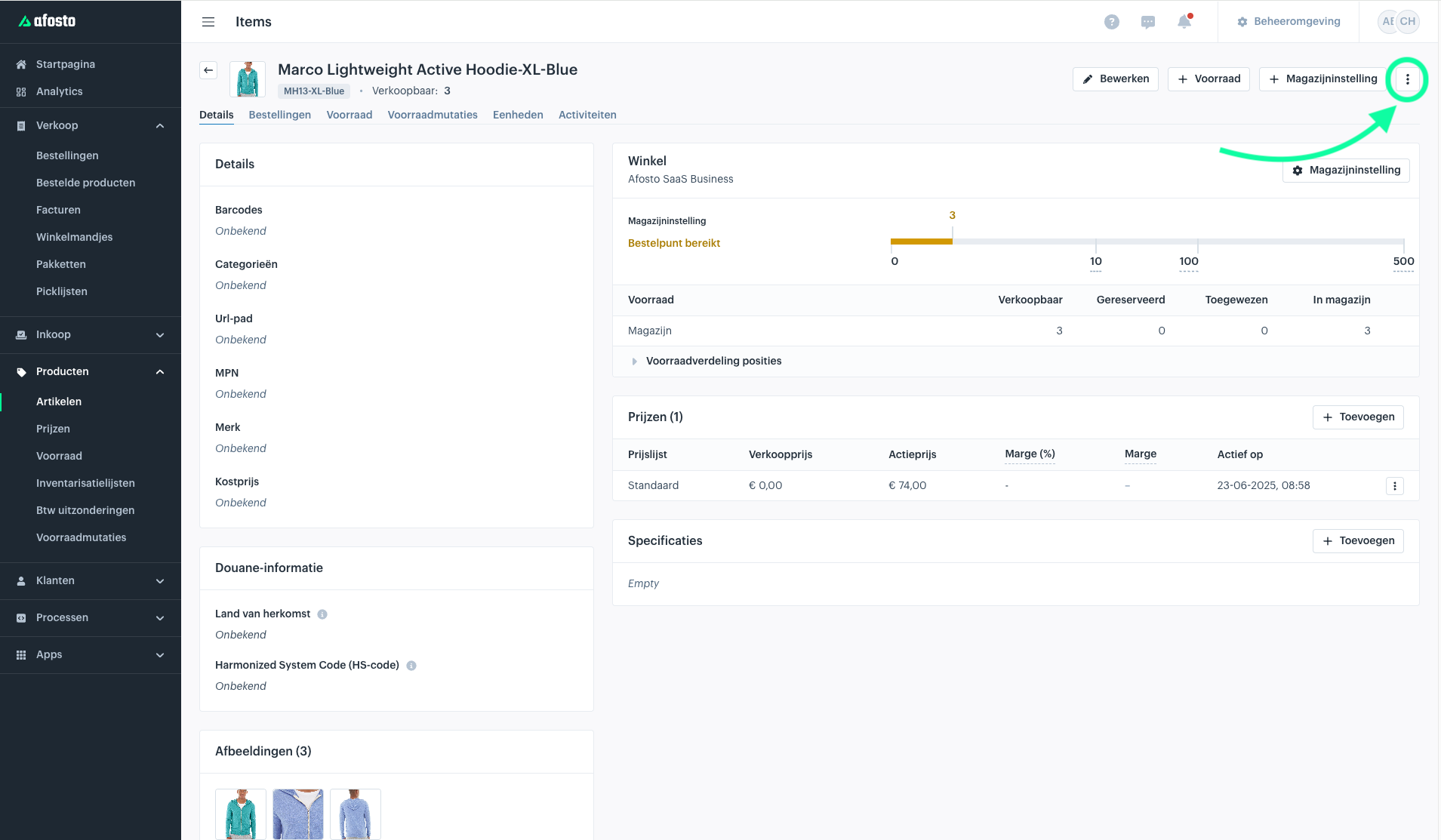
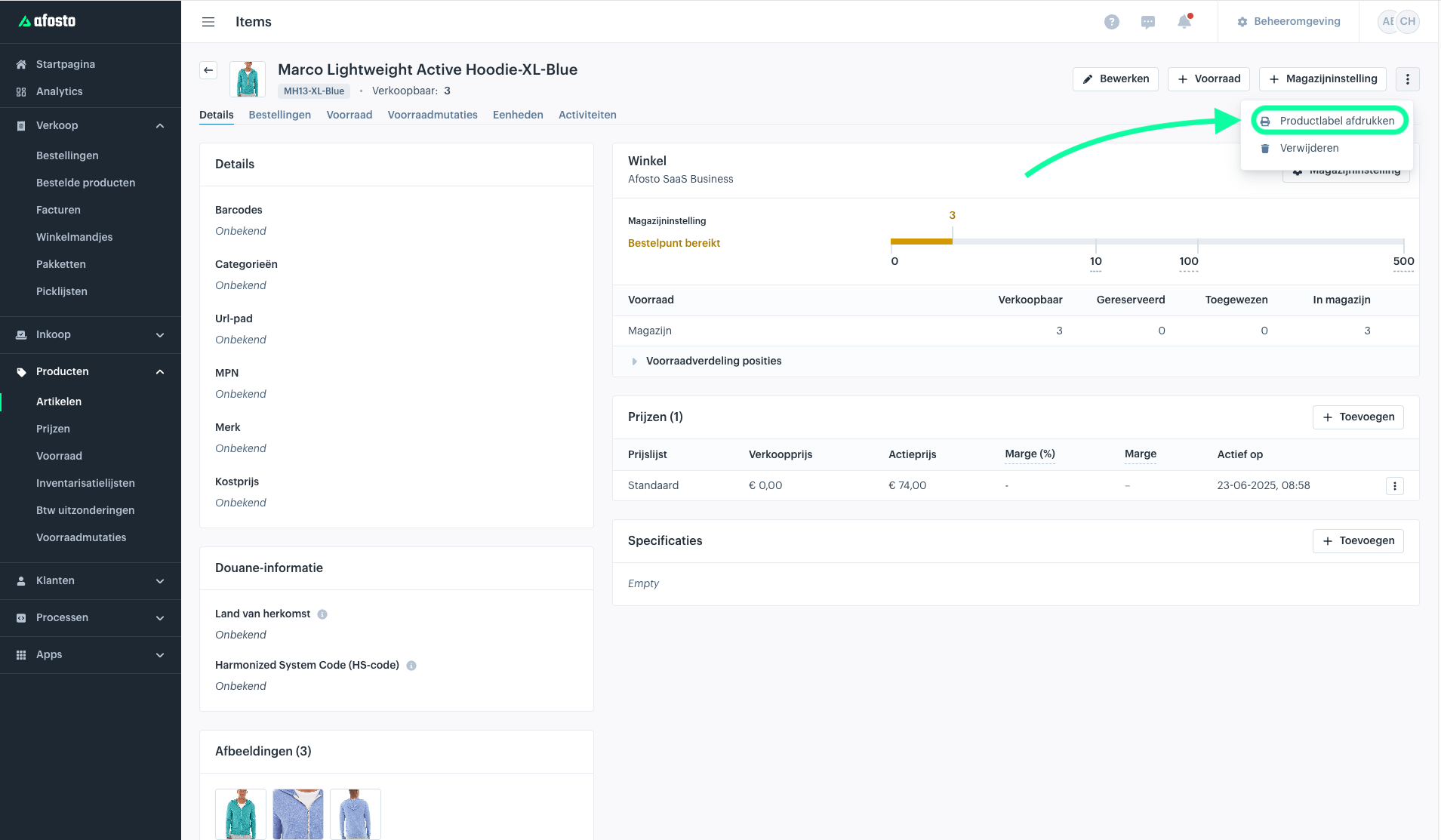
4. Choose the number of labels you want to print.

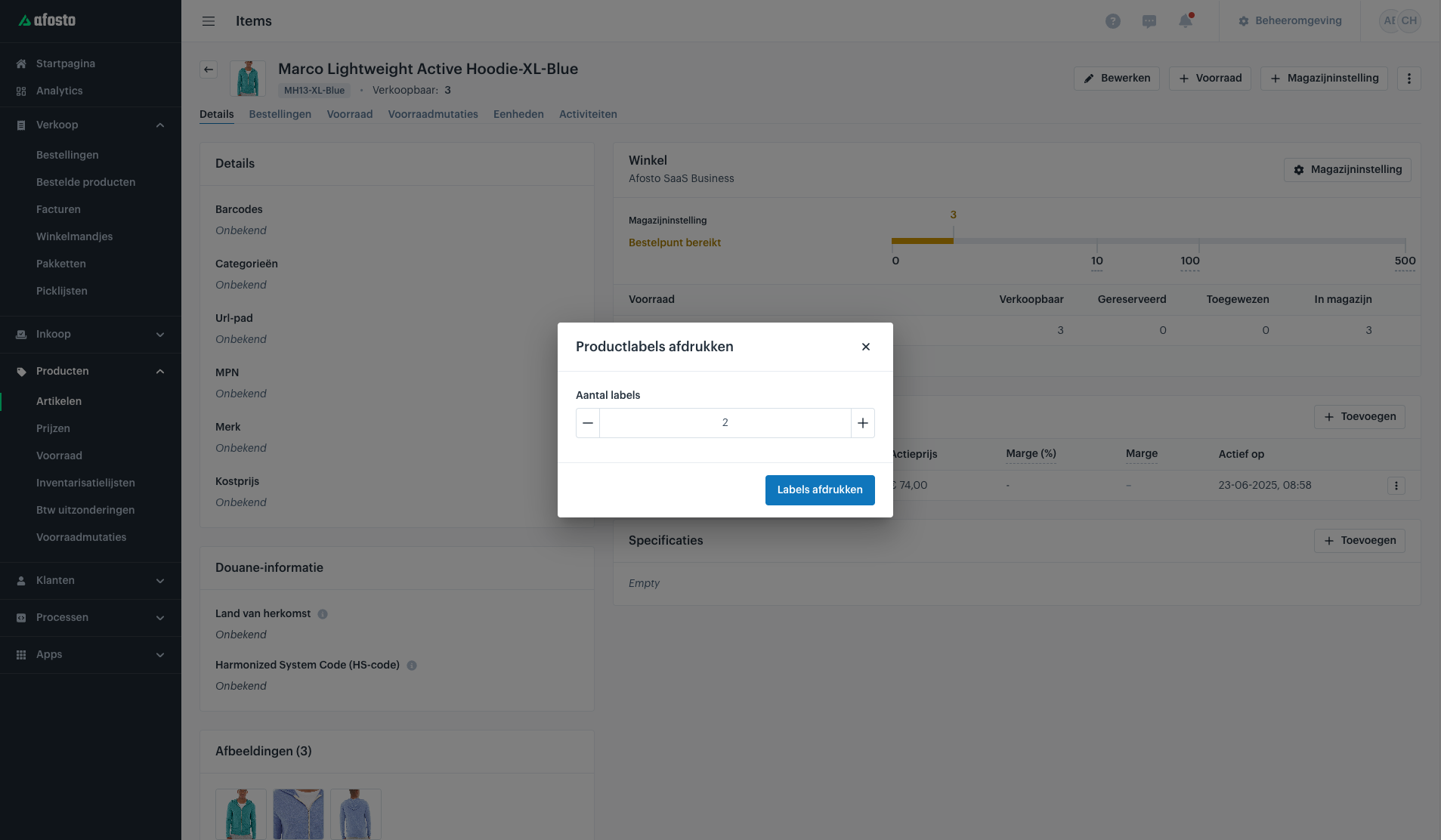
- Select your label printer, and your label will then be printed automatically (if you don’t have a label printer yet, there is also the option to print on A4).
Tips for Use
- Labels can contain barcodes that you can scan during the picking process.
- Combine with the Order Picker app for a fully digital picking process.
Next Step:
If you need help setting up Spooler or creating label templates, contact support or check the documentation at